If you need a usable social video fast, this is the shortcut: write the idea, paste it into CapCut, let the app build the first cut, then clean up the parts that feel too automatic.
📅 Published: May 22, 2026
2-tool setupBest for faceless short videosScript → auto cut → polish
A small workflow for people who want motion without building a whole production stack
This source note by Aran AI Studio keeps the logic simple: plan the copy first, move the copy into CapCut's AI video flow, let the app generate a rough cut, then adjust the result instead of starting from zero.
That makes it very different from a full image-to-video pipeline. Here, the script is the anchor. CapCut handles the matching, sequencing, and rough pacing so you can spend your time on cleanup instead of on blank-canvas panic.
Why it works
One short script creates the whole structure.
You get a first cut fast enough to react to.
The edits are about tightening, not inventing.
Watch one focused CapCut AI video maker tutorial before you copy the workflow
Tomorrows Filmmakers is a strong companion here because the video is process-first: it covers script creation, voice-over, image generation, music, and the edit pass inside CapCut instead of only showing a flashy final result.
Tomorrows Filmmakers198K viewsJul 11, 2025CapCut AI tutorial
01
Start with the words
Write a short script that already sounds like a finished post
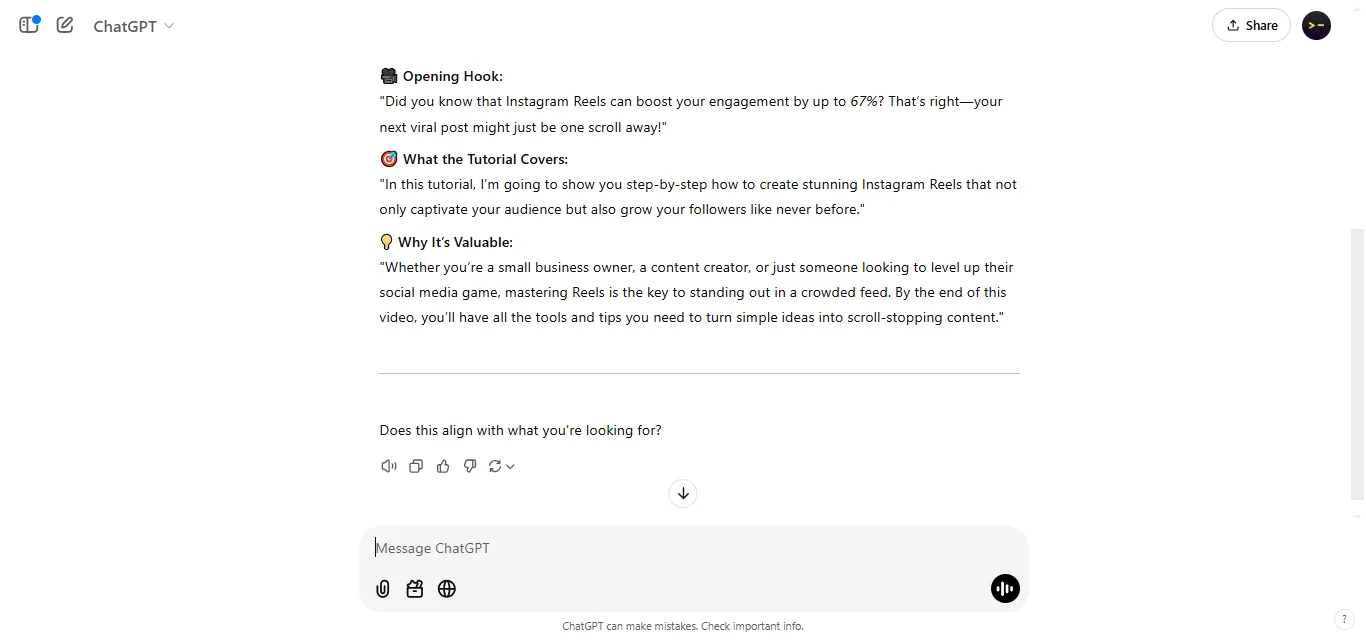
Do not send CapCut a vague topic. Send it a compact script with enough structure to shoot from. The strongest prompt patterns from recent GPT video-script posts all do the same thing: they give the model a role, a goal, a platform, an audience, a tone, and a target length before asking for lines.
That means you should brief GPT like a creative director, not like a search box. Tell it what the video is about, who should care, what kind of hook you want in the first three seconds, and what the ending should do. A simple script usually comes out better when you ask for a clean flow: hook, key points, visual beats, and one short CTA.
Ask for one topic, one audience, one platform, and one target runtime before the script starts.
Specify the output shape: hook, scene beats, voiceover lines, and closing CTA.
Keep the language spoken and visual. If a line sounds like an essay, make GPT rewrite it for narration.
For short-form videos, ask GPT to front-load curiosity and keep each beat easy to match with footage.
Copyable prompt template
Paste this into GPT, then replace the bracketed parts with your topic.
You are a short-form video scriptwriter.

Write a [30-60 second] script for a [TikTok / Reels / YouTube Shorts] video about [TOPIC].

Audience: [WHO THIS IS FOR]
Goal: [WHAT THE VIEWER SHOULD LEARN / FEEL / DO]
Tone: [CLEAR / PUNCHY / FUNNY / EXPERT]
Hook style: [SURPRISING FACT / PROBLEM / CONTRARIAN TAKE / FAST HOW-TO]
CTA: [FOLLOW / COMMENT / TRY THIS / DOWNLOAD / NONE]

Output format:
1. Title: give me 3 options
2. Hook: 1 short opening line for the first 3 seconds
3. Script: 5-8 short voiceover lines
4. Visual beats: one visual idea for each line
5. On-screen text: keep it minimal
6. CTA: 1 closing line

Rules:
- Make it sound spoken, not written
- Keep each line easy to match with simple stock footage, screen recordings, or app UI
- Avoid fluff, repetition, and long explanations
- If a line feels generic, rewrite it to be sharper and more specific
A stronger result usually starts with a fuller brief: topic, audience, platform, hook, tone, and output format.
02
Move into CapCut
Paste the script into CapCut and let the AI build the first pass
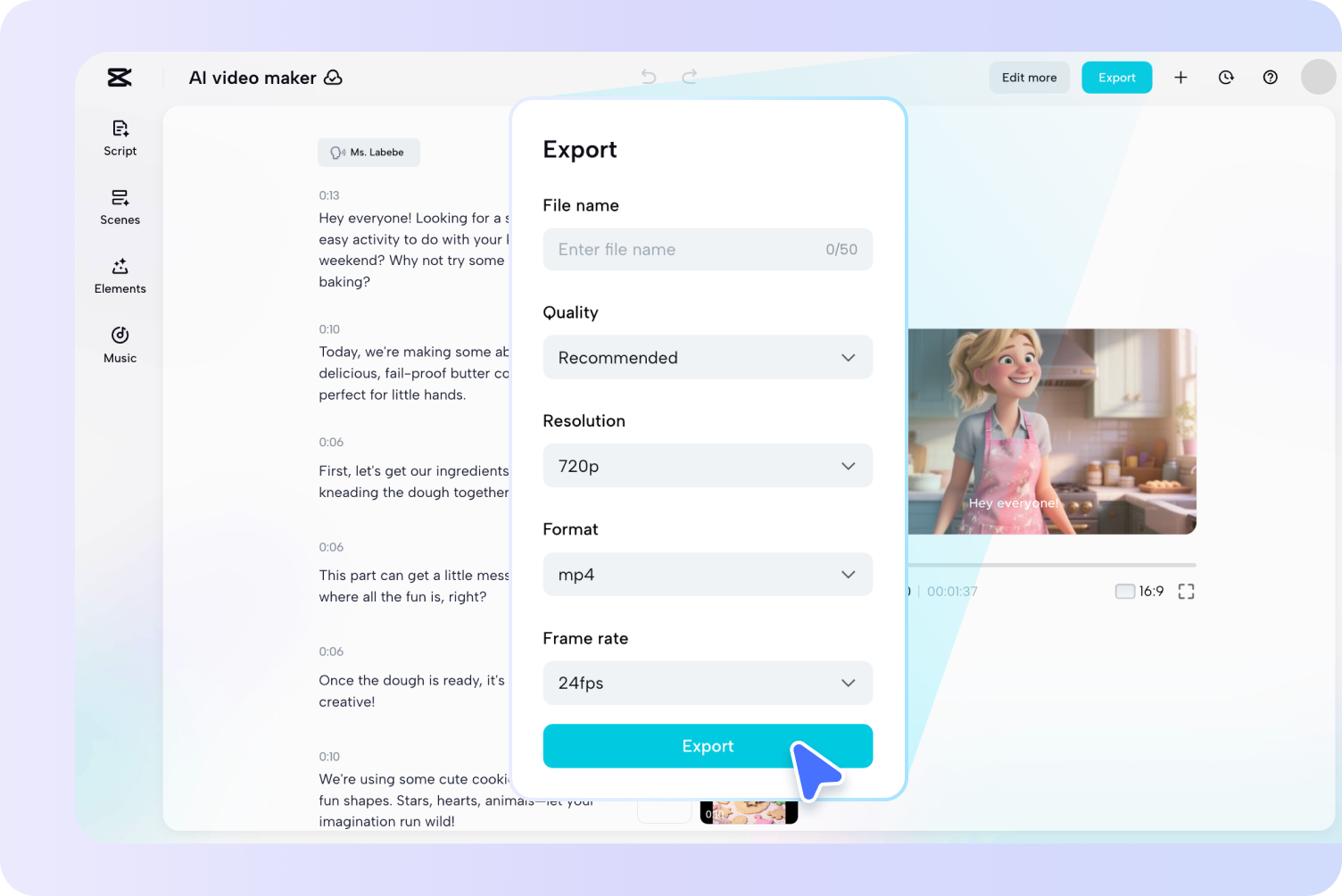
The note's key move is feeding the text directly into CapCut's AI article-to-video flow. CapCut then uses that copy to find visuals, arrange scenes, and build a basic cut automatically. This is the speed trick.
Choose the AI video maker or text-to-video path inside CapCut.
Paste the full script, not fragments, so the sequence stays intact.
Use smart matching for the first pass. You are not locking the final cut yet.
The fastest version of this workflow starts by giving CapCut a complete text input and letting the app do the heavy lifting.
03
Use the rough cut
Keep the structure, then swap the lazy parts
The first CapCut output is supposed to be a draft, not a masterpiece. If a clip feels generic, replace it. If the pacing drags, trim it. If the text overlays are too loud, tone them down or hide them. The useful part is that the sequence already exists.
Keep the scenes that match your script well and replace only the weak ones.
Remove on-screen text when it starts repeating what the voice is already saying.
Think of this as cleanup, not as a total rebuild.
The draft is doing the hard part for you: turning a block of text into a sequence you can react to and improve.
04
Finish the post
Polish the voice, music, and export without overworking it
Once the structure works, the finishing pass is small: check the voice, tighten scene timing, and export. The source note frames this as a quick-output workflow, so do not turn it into a week-long edit.
Add simple music or ambience if the draft feels empty.
Trim awkward pauses instead of generating a second totally new draft.
Export once the message is clear. Speed is part of the point.
The goal is a finished post, not endless micro-optimizing inside the draft editor.
Best use
Fast faceless videos where the message matters more than custom cinematic footage.
Common mistake
Dumping in too much text and expecting the AI to fix a bloated script for you.
Nice shortcut
If CapCut adds too much visible text, reduce or hide it instead of deleting the whole scene.
What to remember before you try it
A workflow like this works because each tool has one clear job. The writing tool gives you the script. CapCut gives you the first cut. Your edit pass gives the post a human finish.
Short beats perfect. A tight script usually gets a better AI assembly than a long rambling one.
Draft first, taste second. Let the AI make something, then judge it with real footage on screen.
Swap the weak visuals. You do not need to rebuild the full video if only two or three shots feel off.
A fast workflow usually beats a complicated one you never finish.
 OmniFit
Blog home
OmniFit
Blog home