A better Claude Code animation workflow starts in Figma
If you already design in Figma and hate bouncing through AE, Rive, and export gymnastics for every medium-complexity motion idea, this is a smart sequence to copy.
This workflow removes a lot of avoidable back-and-forth
Fei Kele's note is useful because it is not selling one magic prompt. It is really a sequencing lesson. Draw the motion system in Figma first. Give Claude the structure through MCP. Make it restate what it sees. Then push into movement, easing, and code output.
That order matters. A lot of AI animation attempts fail because the model is asked to invent the design and the motion logic at the same time. This workflow splits those jobs cleanly, which is why it feels more repeatable than a flashy one-shot demo.
A good companion walkthrough
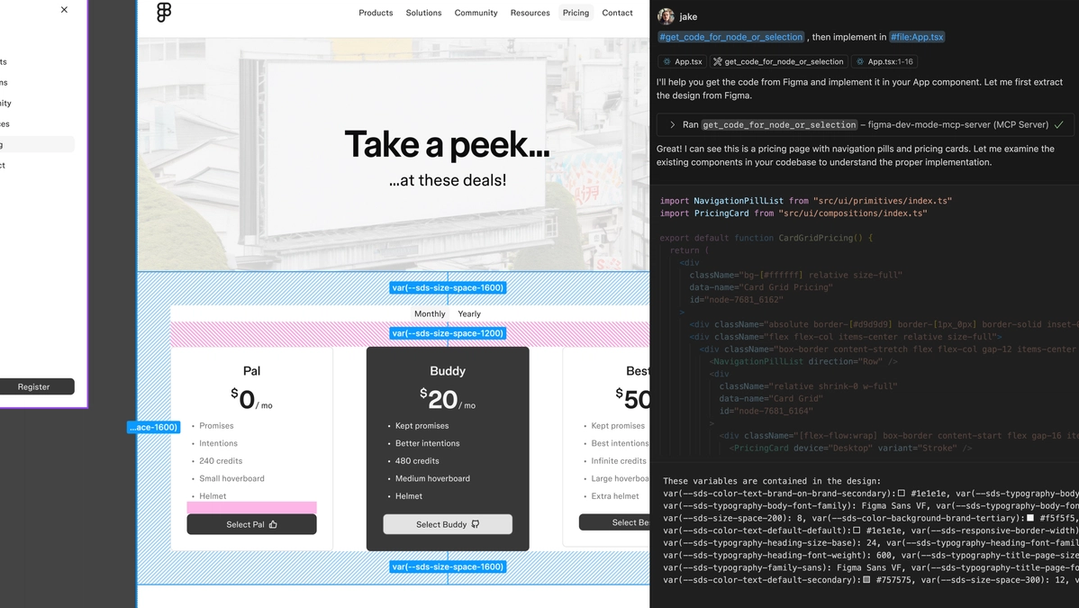
This Peter Yang video is a strong match because it is process-first, not just result-first. It shows how Claude Code and Figma MCP work together in a real design-to-code flow, which lines up with the same core move in Fei Kele's note: give the model structured design context before you push for output.
Five moves worth stealing
Keep the sequence. That is the whole trick.
Draw the motion in Figma before you ask AI to improvise
Start with vectors in Figma. If the animation has more than one meaningful state, draw extra keyframes too. The goal is not perfect polish. The goal is giving the motion logic a visible structure.
- Use clean vector parts. Separate objects the way they should move.
- Add key moments. Complex motion gets easier when start, mid, and end states already exist.
- Think like a system, not a shot. You are giving Claude ingredients, not asking for a lucky guess.

Name and group layers like you want the model to read them
Fei Kele calls this out for a reason. If the grouping is messy and the names do not match the content, Claude will misunderstand the file and your prompt budget will get burned on cleanup instead of motion.
- Group by moving part. Keep related pieces together.
- Use literal names. "lid", "sardine", "label", "highlight" beats mystery layers every time.
- Make the file readable. Good organization is part of the prompt.
Ask Claude to explain the file before you ask for animation
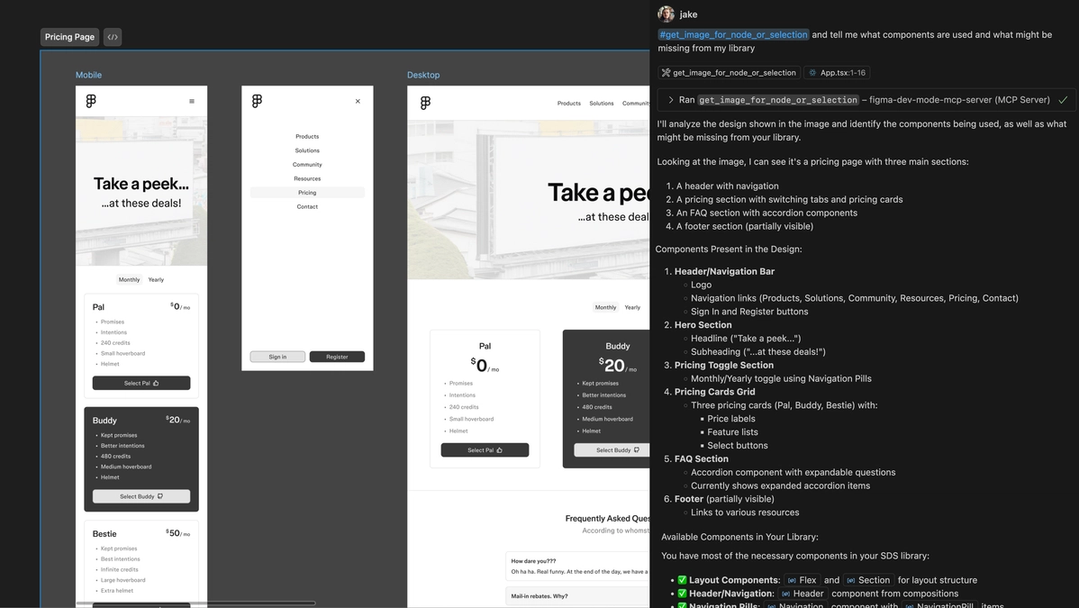
This is the smartest part of the note. Do not open with one giant wish-list prompt. First, ask Claude to inspect the Figma file and tell you what it thinks is happening. Then correct the misses. Then ask for motion.
- Force a readback. You want understanding before generation.
- Fix drift early. It is cheaper to correct interpretation than to rewrite bad output.
- Only then add animation direction. Timing, sequence, and behavior land better once the design is understood.
Be explicit about easing, and keep sound outside the magic-show lane
For easing, Fei Kele uses bezier curves directly or falls back to named presets like easeInCubic. That is practical. Also practical: not pretending the built-in sound pass is good enough if it is not.
- Use real easing language. Curves or presets both work if they are concrete.
- Keep motion instructions plain. "Translate", "rotate", and "scale" are easier wins than abstract vibes.
- Source audio elsewhere. If the sound output is weak, move on fast.
Expose the repeat-tweak settings as controls
Fei Kele's last move is underrated: turn things like background color and animation duration into UI sliders or controls. That gives you fast iteration without negotiating every tiny change through chat.
- Prompts are not always the best control surface. Repetitive adjustments belong in UI.
- Great for medium-complexity motion. You can test variants quickly without rebuilding the whole piece.
- Perfect for product work. It gets you closer to something teams can actually ship and tune.

Each tool gets one clear job
Figma holds structure. MCP carries context. Claude explains before it generates. Sliders handle repeated tweaks. Audio comes from somewhere better. That separation is why the workflow feels stable instead of magical.
Do not use this for everything
If the motion depends on heavy shape morphing, abstract transitions, or endless explanation, you may spend more time forcing Claude to act like a traditional animation tool than you would just using the traditional animation tool.
The practical stack in plain English
- Figma for vectors, keyframes, grouping, and readable structure.
- Figma MCP for passing design context into the coding workflow.
- Claude Code for interpreting the design and turning motion logic into code.
- External sound source for anything you actually want people to hear.
Useful official references: Figma's MCP server overview and Claude Code.