How to Convert Vertical Video to YouTube Landscape — Without Losing Content
Your TikTok and Reels clips already have an audience. YouTube can give them a second one — but only if you solve the format gap. Here's why cropping fails, what outpainting actually does, and how to turn a 9:16 vertical into a clean 16:9 landscape without cutting a single frame.
What's in this guide
The real problem with vertical-to-landscape conversion
You shot a great vertical video for TikTok or Reels. It performed. Now you want to bring that same content to YouTube's main feed — where long-form, landscape 16:9 video still dominates discovery, watch time, and ad revenue.
The math is brutal. A 9:16 portrait frame is tall and narrow. A 16:9 landscape frame is wide and short. They're essentially inverted rectangles. Converting one into the other means you have to fill a frame that's almost 3.2× wider relative to its height.
Crop the top and bottom — you lose up to 75% of the original frame. Faces get cut at the chin. Text overlays vanish. The video looks like it was filmed through a letterbox slot.
Pillarbox with blur fill — the original video sits in the center at 1/3 the screen width, flanked by a blurry, stretched copy of itself. YouTube viewers recognize this instantly. It screams "repurposed afterthought."
📷 Real example: vertical video on a landscape player
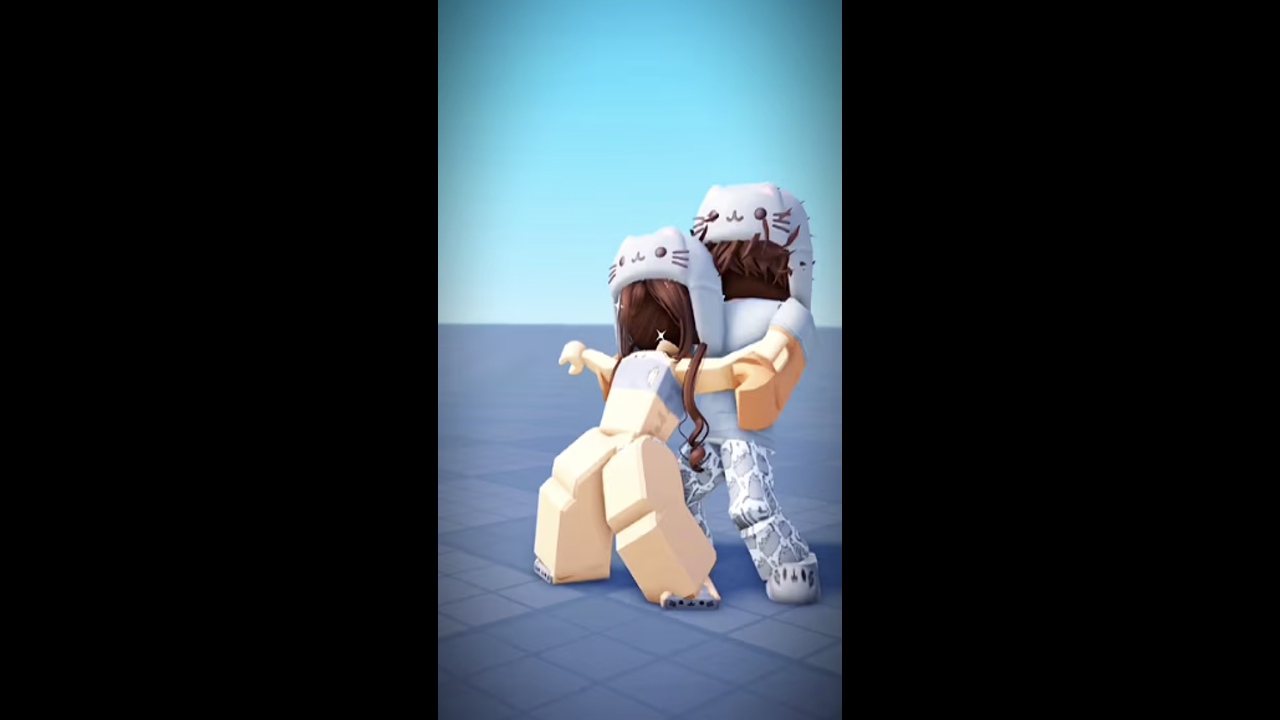
This is what your audience actually sees when a vertical video plays in YouTube's landscape player. The content shrinks to roughly one-third of the screen width, surrounded by thick black bars.
On a desktop monitor, the effect is even worse — the video becomes a narrow strip in a sea of dead space. Watch time drops because the viewer experience is noticeably degraded.
Both approaches ship something to YouTube, but neither ships something worth watching. The vertical content you worked on deserves better — and YouTube's algorithm agrees. Videos with non-native aspect ratios see lower click-through rates, shorter average view durations, and less algorithmic push.
Four ways creators convert vertical video today
| Method | How it works | Content lost? | Looks native? |
|---|---|---|---|
| Hard crop | Slice the top/bottom to force 16:9 | Up to 75% | Yes, but ruined |
| Blur / color fill | Center the video, fill sides with blur or solid color | None | No — obvious repurpose |
| Split layout | Place vertical video next to text, graphics, or a second video | None | Sometimes — depends on design |
| AI outpainting | Generate new pixels on the left and right to extend the scene | None | Yes — looks like it was shot in landscape |
The first three have been around for years. They work in a pinch but create a visible trade-off: you either lose content or you lose the illusion that the video was made for YouTube.
How today's tools actually handle vertical → landscape
Every current video editing tool uses some variation of two fundamental strategies: cropping (removing pixels) or padding (adding dead space). Here's exactly what happens when you drop a 9:16 vertical into each one:
🔻 Strategy 1: Crop to fill (what Premiere, CapCut "auto-reframe", and Kapwing do)
These tools zoom into the center of your vertical frame until it fills a 16:9 box. The trade-off is brutal: a 9:16 source contains only 31.6% of the pixel area of a 16:9 frame at the same height. The crop slices away the top and bottom of the frame, sometimes intelligently tracking the subject (Premiere's "Auto Reframe", CapCut's "Reframe"), sometimes just centering blindly.
- Adobe Premiere Pro / Auto Reframe: Uses AI to track the subject's face or body and keep it centered. Works decently for talking heads, but fails on multi-subject shots, text overlays, and anything at the frame edges. Still loses ~70% of the vertical frame.
- CapCut Auto Reframe: Similar AI subject tracking. Free and fast, but the output quality drops on complex scenes — the crop window often jitters between subjects or locks on the wrong one.
- Kapwing Smart Resize: Detects the "important" region and crops around it. Works for centered subjects, misses captions, lower-thirds, and anything outside the center third.
Bottom line: You ship a landscape video, but you've destroyed most of what you originally shot.
⚠️ Strategy 2: Pad with bars or blur (what Canva, iMovie, and FFmpeg do)
These tools keep every original pixel — but shrink the video to fit inside a 16:9 box and fill the remaining space with black bars, solid colors, or a blurred/stretched copy of the video itself.
- Canva Video Resizer: Centers the vertical clip in a landscape canvas. Offers solid color or "Background blur" fill for the bars. The blur is a stretched, pixelated copy of the video — recognizably fake.
- iMovie (Mac): Defaults to black pillarbox bars on left and right. No blur option, no customization. The result looks like a phone screen on a TV.
- FFmpeg
padfilter: Maximum control — you can set exact pixel dimensions, bar color, and position. But it's command-line only (-vf "scale=608:1080,pad=1920:1080:656:0:black") and still just adds dead space around the video. - DaVinci Resolve: Project timeline set to 16:9 naturally pillarboxes any vertical clip. You can add a blurred background via a duplicated, scaled track — manual setup for every clip.
- Filmora: Has a built-in "blur background" feature that fills the pillarbox bars with a blurred, zoomed-in copy of your video. Better than black bars, but still obviously a repurposed vertical clip.
- Adobe Premiere Pro: Requires manually duplicating the clip to a second track, scaling it up to fill the frame, and applying a Gaussian blur — a multi-step process for every single clip. The result looks polished but still screams "this was vertical."
Filmora: blur background method
Premiere Pro: manual blur layers
Bottom line: Content is preserved, but viewers see a tiny video surrounded by filler. Even the best blur effect — which requires paid software and manual work per clip — still looks like a repurposed phone video. YouTube's algorithm treats it like a degraded viewing experience.
✅ Strategy 3: AI outpainting (what OmniFit does)
Instead of removing pixels or adding dead space, outpainting generates new, scene-appropriate pixels on the left and right sides. A video diffusion model reads the existing frame — the lighting, the background texture, the motion — and creates plausible extensions of the scene. The original content stays exactly where it is, pixel-for-pixel.
- Nothing is removed: The full vertical frame becomes the center of the landscape output. Every face, caption, and detail is preserved.
- Nothing is blurred or faked: The side content isn't a stretched mirror or a color fill — it's newly generated imagery that matches the scene's context.
- The output passes the "native" test: A viewer watching the result can't tell it wasn't shot in landscape originally. There are no bars, no crops, no visual giveaways.
Bottom line: You get a full 16:9 video that looks like it was shot that way — with zero content loss.
🎬 OmniFit in action: one click, fully AI-driven
No timeline editing. No blur layers. No manual cropping. Upload your vertical video, click convert, and OmniFit's AI generates a natural landscape extension — frame by frame.
What makes OmniFit different:
- Natural outpainting, not blur: The AI generates real scene content — desert terrain, sky, road — that seamlessly extends the original frame. No blurry filler, no black bars.
- Zero human effort: No timeline, no layers, no Premiere Pro subscription. Upload → select 16:9 → done. The entire pipeline runs in the cloud.
- Frame-level AI generation: Every frame is individually analyzed and extended using a video diffusion model. The result moves and feels like native landscape footage.
This is the fundamental shift. Every tool before outpainting forced creators into a trade-off: keep your content but look unprofessional (pad), or look professional but lose your content (crop). AI outpainting eliminates that trade-off entirely — it's the only method that actually adds to the frame instead of subtracting from it.
How AI outpainting works (and why it's different)
Outpainting is a generative AI technique that extends a video frame beyond its original boundaries. Instead of cropping into the existing 9:16 frame, the AI looks at what's already visible — the subject, the background, the lighting, the motion — and generates new, coherent pixels to fill the left and right sides of a wider 16:9 canvas.
What happens under the hood
- Scene analysis. The AI reads each frame to understand the spatial layout — where the subject is, what the background looks like, how the lighting falls, and what's in motion.
- Temporal chunking. The video is split into chunks with overlap between them, so the outpainted content stays consistent across cuts rather than flickering or shifting.
- Pixel generation. A video diffusion model generates the new side content frame-by-frame, constrained by the original center pixels. It's not stretching or mirroring — it's creating plausible extensions of the scene.
- Stitching and blending. The generated edges are blended back into the original frame so there's no visible seam. Reference frames from earlier chunks maintain style continuity across the full video.
See the difference: crop vs. outpaint on the same clip
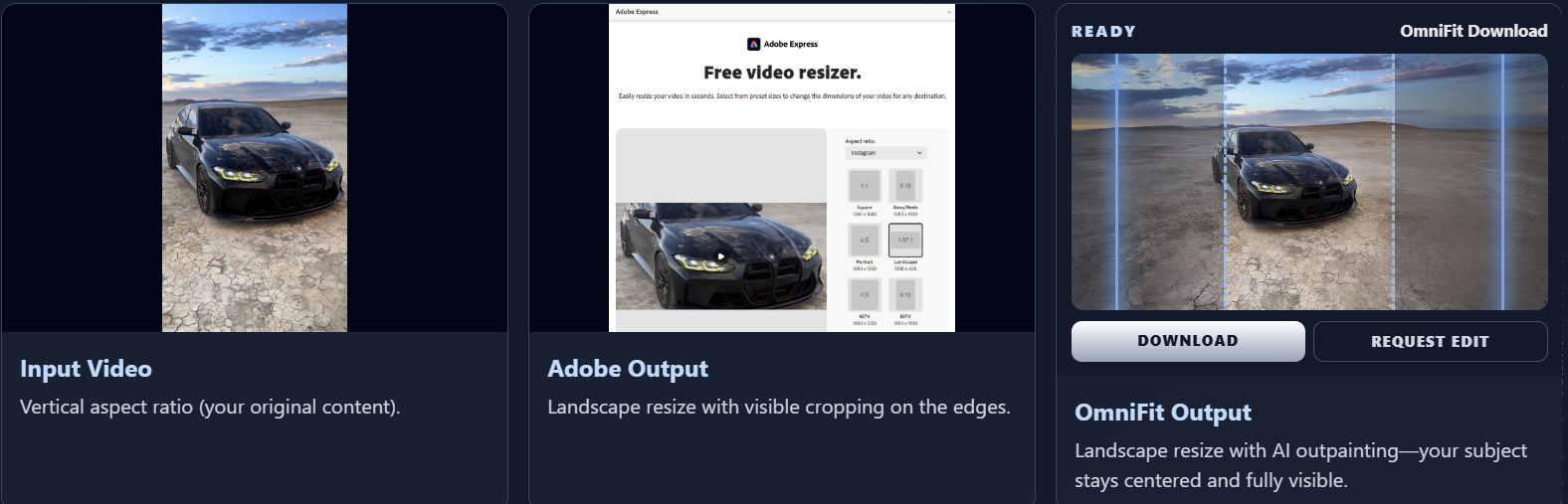
Same source clip, two approaches. The crop sacrifices the edges. Outpainting extends them. Full comparison →
What outpainting is not
- Not stretching. The original pixels aren't distorted or scaled. They stay exactly where they are.
- Not mirroring. The AI doesn't flip and paste the edges. It generates new content that matches the scene.
- Not a filter. This is frame-level video generation, not a color grade or an overlay. The computational cost is real, which is why it runs in the cloud.
When to convert vs. when to re-shoot
Outpainting is powerful, but it's not always the right call. Here's a practical decision framework:
| Scenario | Best approach | Why |
|---|---|---|
| Talking head / selfie-style video | Outpaint | Subject is centered, background is simple — AI extends the scene naturally. |
| Product demo / unboxing | Outpaint | Product stays in frame, surroundings are predictable. |
| Street vlog with lots of motion | Outpaint with review | Works well, but check edges for motion artifacts on fast pans. |
| Multi-person interview | Re-shoot in landscape | People off-screen in the original can't be hallucinated correctly. |
| Text-heavy explainer with graphics | Re-edit natively | Easier to reposition text and graphics in a new 16:9 timeline. |
| Evergreen content that performed on TikTok | Outpaint | Proven content + new platform reach = highest ROI move. |
What YouTube and the industry are signaling
YouTube is investing in dual-format creators
At LiveCon 2025, YouTube announced simultaneous dual-format streaming — letting creators broadcast in both horizontal and vertical at the same time with a unified chat. The message was clear: YouTube expects creators to serve both formats, not pick one. Over 30% of daily logged-in YouTube viewers watched live content in Q4 2025, and YouTube reported that creators who combine Shorts with long-form content see stronger growth than those who stick to one format.
The vertical-first production shift
A 2025 eMarketer report found that 9 in 10 US consumers are open to watching TikTok-style vertical clips on publisher sites. YouTube Shorts crossed 70 billion daily views. The entire media industry — from The New York Times launching a vertical "Watch" tab to Netflix testing a TikTok-like vertical feed — is reorganizing around portrait-first content.
But here's the catch: YouTube's main feed, where the real watch time and ad revenue live, is still built for landscape. Creators who only produce vertical are leaving that entire surface untapped. The creators who win are the ones who can bridge both formats from a single production effort.
Repurposing is the new production
The industry consensus in 2026 is that manually shooting the same content twice — once vertical, once horizontal — is unsustainable for most creators. 65% of marketers now plan to design content for vertical formats first, then adapt for horizontal distribution. AI-powered format conversion (outpainting, reframing, smart cropping) is becoming a core part of the creator toolkit — not a gimmick, but a workflow necessity.
Stop choosing between platforms
Upload your vertical video. OmniFit outpaints it to 16:9 landscape — no cropping, no blur bars, no content lost.
Try OmniFit free →