OmniFit
Creative coding workflow

How to build a rainy generative video loop with ChatGPT and p5.js

If one-click AI video feels too generic, this workflow gives you a different move: describe the mood, turn it into motion rules, let p5.js render the loop, then record the result like a shot you actually designed.

đź“… Published: May 26, 2026
By Sihua Mood animation ChatGPT + p5.js Record, then edit

What this workflow actually teaches

Most AI video tutorials stop at “write a prompt and hit generate.” This one is more useful for makers who care about visual language. The source note starts with a clear picture in your head, breaks that idea into different kinds of text instructions, then uses the language model as a coding partner instead of a full replacement for taste.

The end result is not a giant cinematic short. It is a controlled motion loop you can screen-record, polish, and reuse inside a larger AI video, title sequence, visual interlude, music clip, or moody opener.

01

Concept text

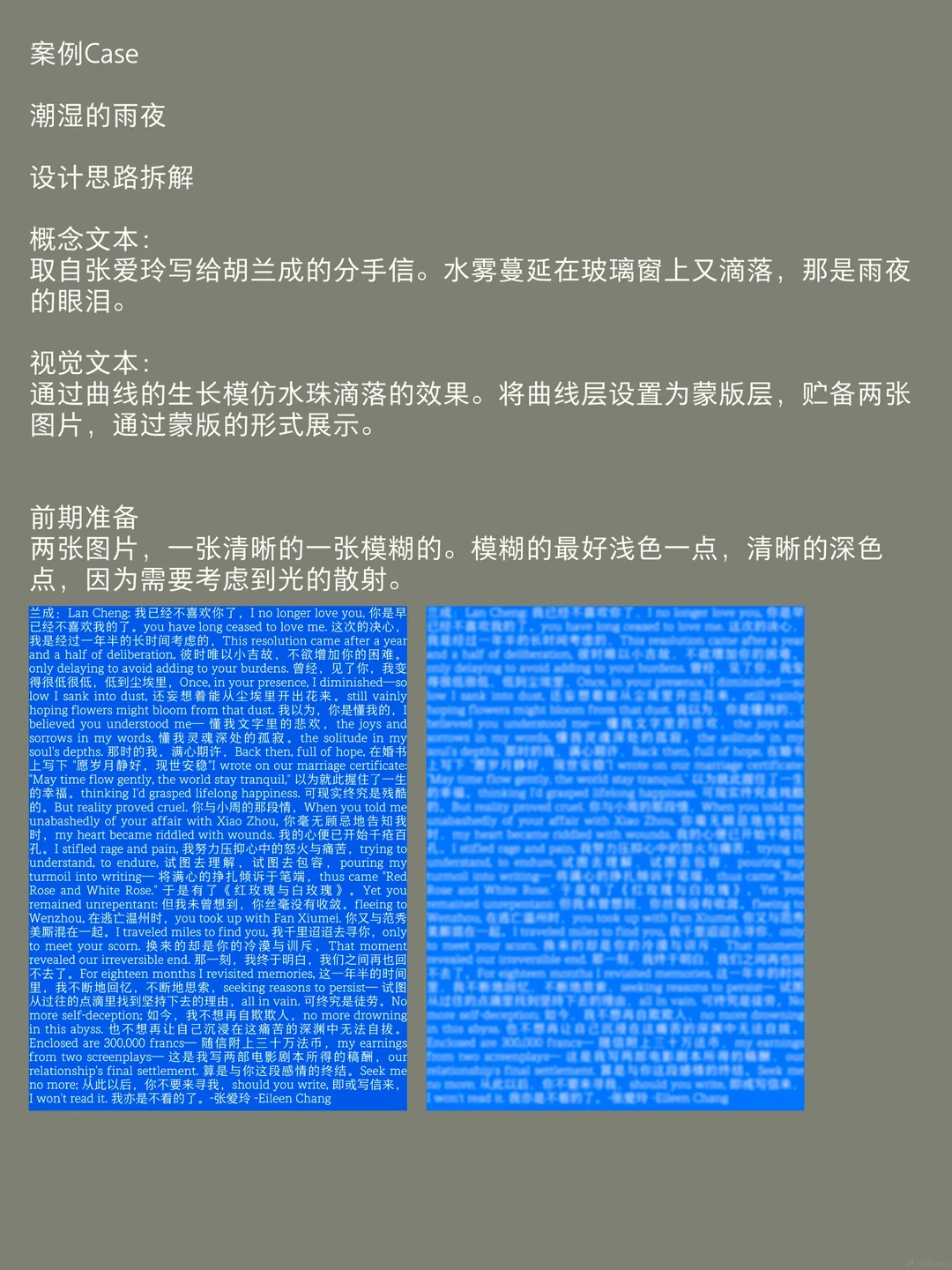
Start with the emotional brief first. Name the weather, the surface, the pace, and the feeling. The source note treats this as the high-level scene idea before any code exists.

02

Visual text

Describe the main elements you actually want to see: droplets, haze, typography, circles, glow, softness, blur, spacing. This is the translation layer from mood into visuals.

03

Interaction text

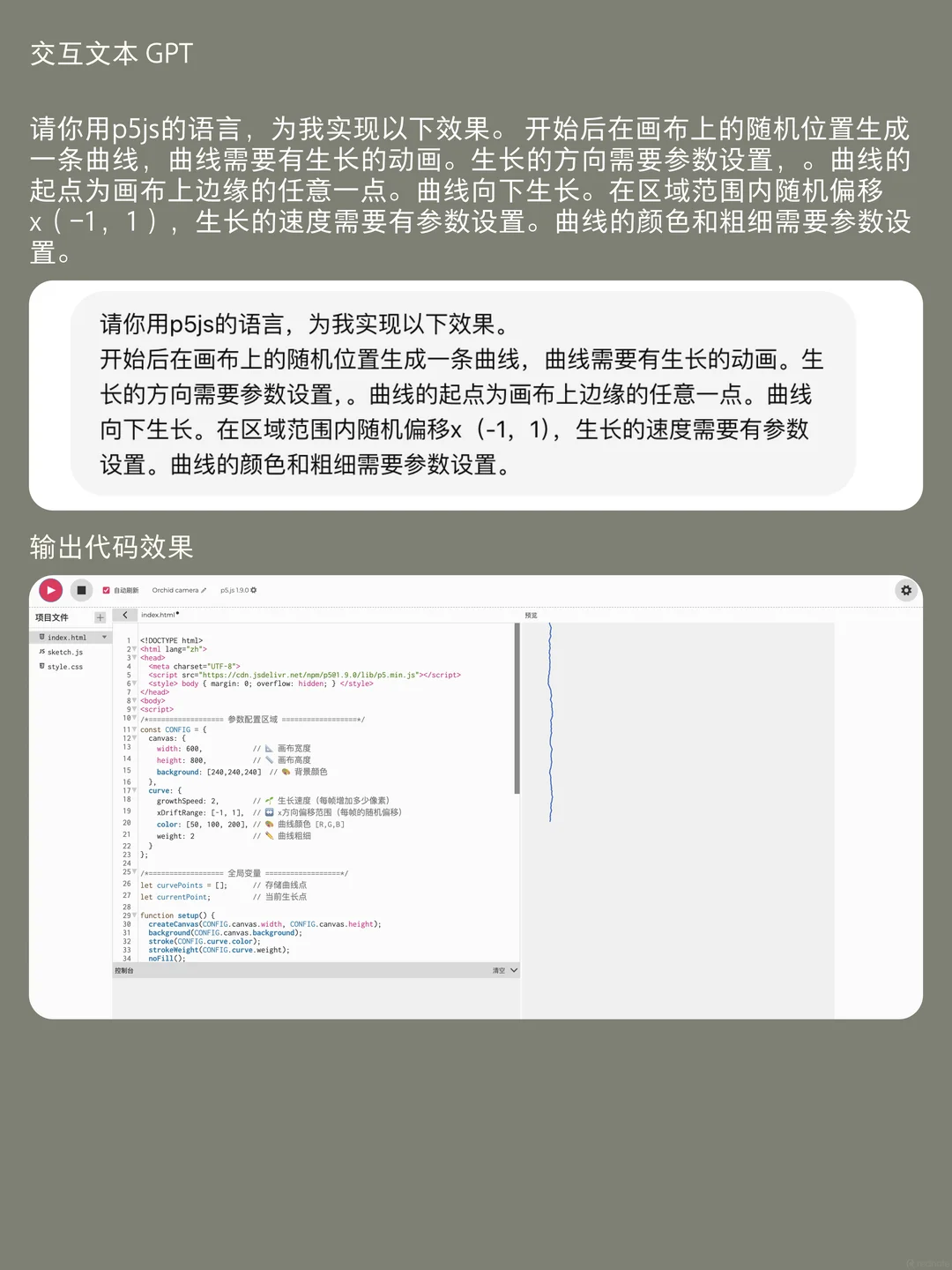
Tell the model how the parts should behave. Drift, explode, fade, scatter, pulse, overlap, or react. Motion rules matter more here than extra adjectives.

1

See the scene before you ask for the code

The source note is blunt about this: if you do not already have a picture in your head, your prompt gets mushy fast. Collect references first, then compress them into a few dominant elements instead of describing everything at once.

  • Pick one emotional direction, not five.
  • Name the main objects and textures early.
  • Keep the scene legible enough that later motion still feels intentional.
Creative coding reference frame showing text and shape elements arranged for a rainy p5.js animation concept
Good generative motion starts with one stable visual idea.
2

Lock the main motion logic before the conversation gets messy

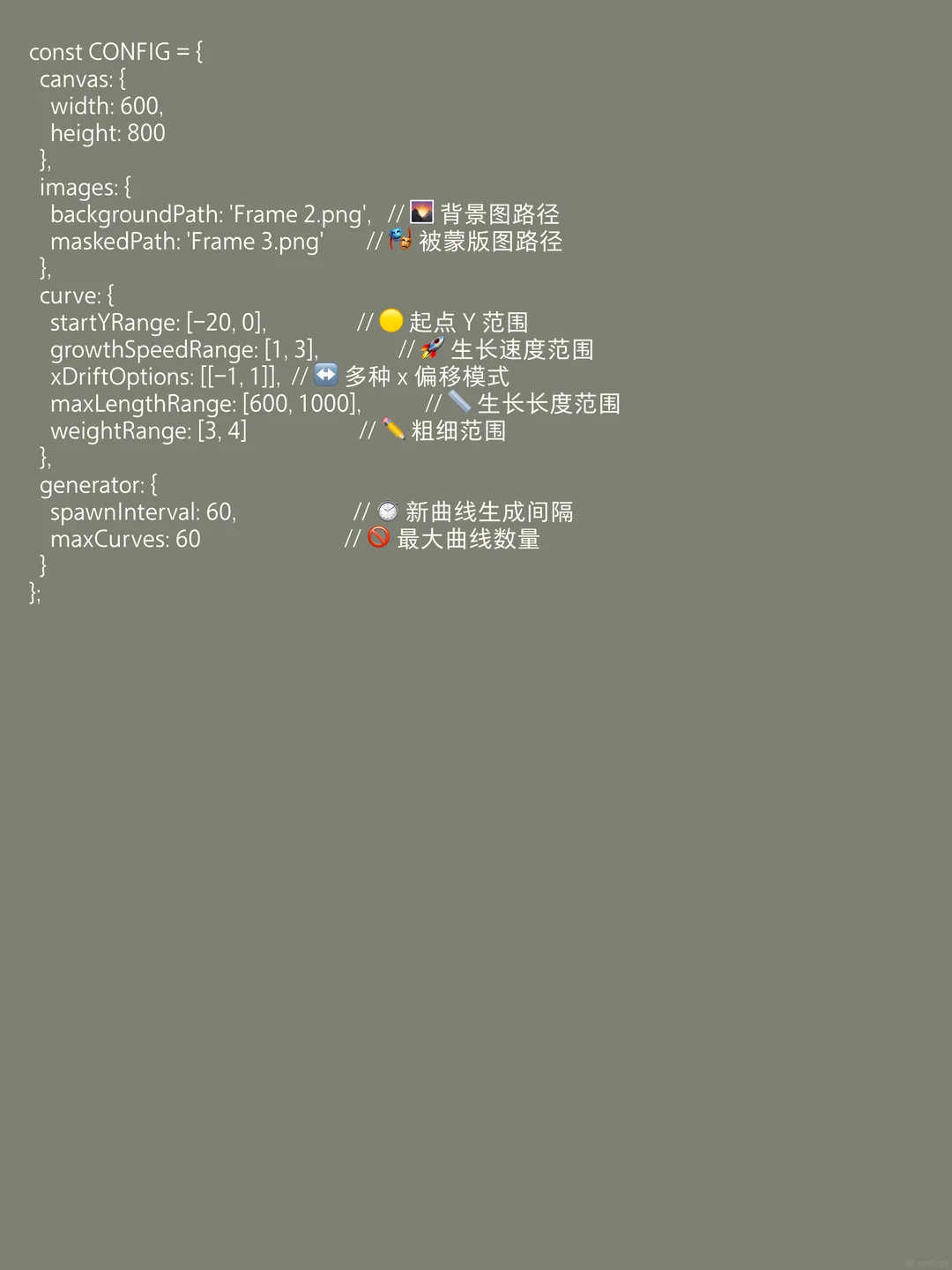
Do not wait until the middle of debugging to decide what is moving. The note recommends identifying the main dynamic behavior upfront — for example, scattered text, circular bursts, drifting rain, or layered blur — so the model can build a cleaner logic tree.

  • State the core motion in one sentence.
  • Ask for complete code, not fragments.
  • Make the model label important parameters so you can tune them later.
Generative sketch planning frame used to define motion behavior and layout rules for a rainy loop
Motion rules first. Decoration second.
3

Use the model like a coding partner, not a magician

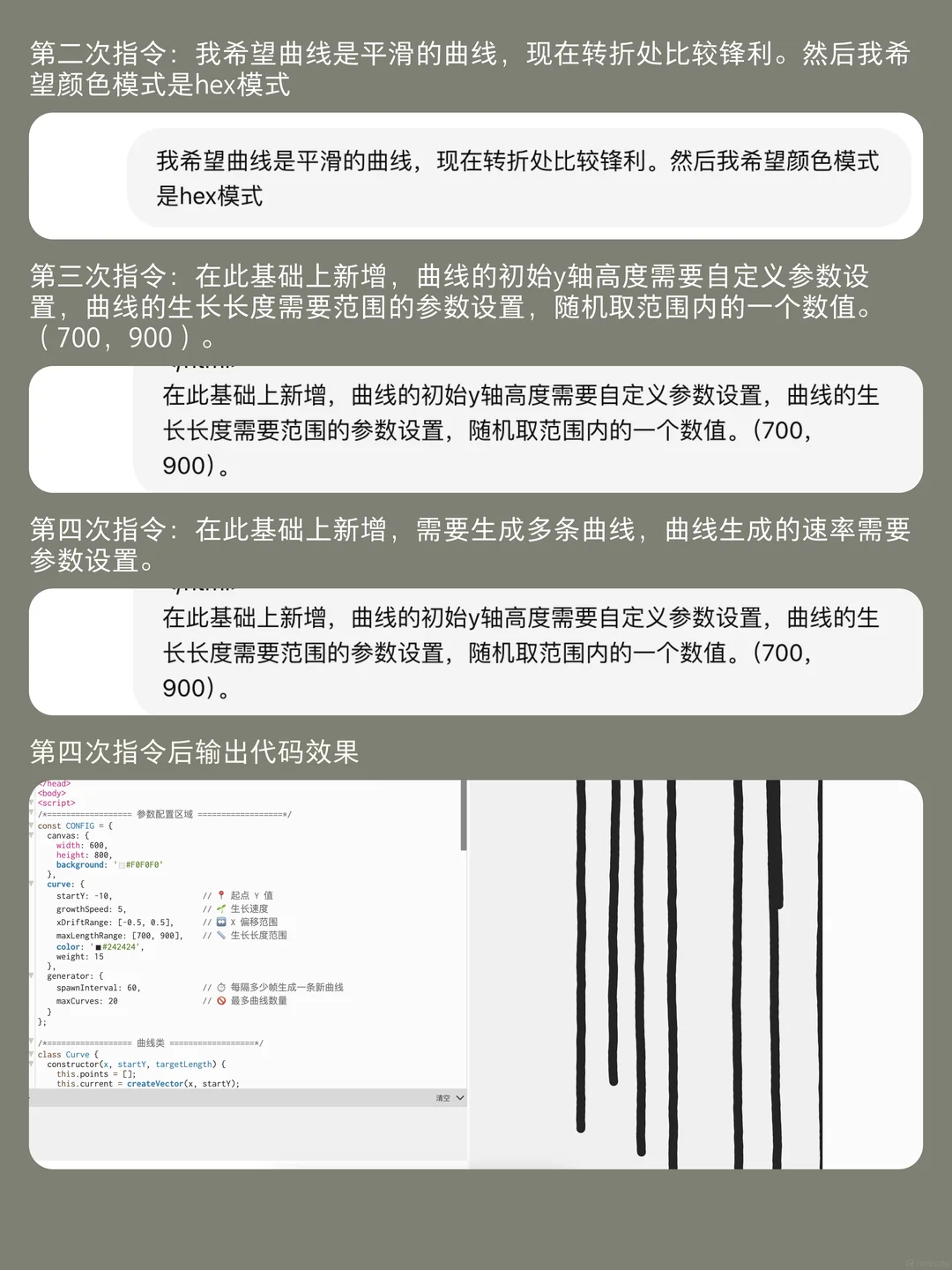
Once you run the sketch, the real work becomes feedback. Find the broken piece, ask for that fix, and restart the thread when the logic gets tangled. This is one of the strongest parts of the original post: it treats iteration as a normal part of the workflow instead of a failure.

  • Debug the specific issue you can see on screen.
  • Restart with the closest clean version if the thread becomes chaotic.
  • Keep nudging toward one effect instead of piling on new features.
Refined rainy-motion visual showing how small parameter changes can tighten a generative animation loop
Most of the polish comes from parameter cleanup, not from adding more concepts.

Common mistake

  • Giving the model a huge poetic paragraph and hoping it discovers the motion by itself.
  • Accepting partial code blocks that hide missing variables or broken logic.
  • Changing the whole concept every time one detail feels wrong.

Better move

  • Break the request into concept, visuals, and behavior.
  • Ask for full code and clearly named parameters.
  • Keep one version close to working, then refine from there.

Tool stack in plain English

  • ChatGPT or Gemini: for scene language, motion rules, and code iteration.
  • p5.js: for the actual sketch and animation logic.
  • Screen recording: because a good loop is often easiest to capture live.
  • After Effects, Premiere Pro, CapCut, or similar: for trimming, sound, and final export.

Why this works for AI video makers

You get a motion asset that feels more personal than stock footage and more controllable than a generic text-to-video result. It is especially good for openers, interludes, lyric-style backgrounds, visual poems, and atmosphere-heavy edits.

Related watch if you want a stronger p5.js intuition

The Coding Train’s “Matrix Digital Rain in p5.js” is not the same workflow, but it is a useful companion because it shows how one visual idea turns into motion logic inside p5.js. That makes it a better support pick here than a generic AI showcase reel.

Open companion video ↗