OmniFit logo OmniFit Blog
Workflow · DaVinci Resolve · MCP

Talk to DaVinci: A Simple MCP Workflow for Faster Editing

If you already edit in Resolve, this is the cleanest version of the AI editing pitch: wire Claude into DaVinci Resolve Studio, hand off the repetitive timeline chores, and keep the creative calls for yourself.

📅 Published: May 24, 2026
By GrainyGlimpse May 24, 2026 DaVinci Resolve Studio only Claude + MCP
DaVinci Resolve course-style tutorial cover
A tutorial-style workflow is the right mental model here. This is not magic editing. It is a faster way to drive repetitive Resolve actions with plain English.
The simple version

This setup connects Claude to DaVinci Resolve through an MCP server. Once the bridge is in place, you can describe what you want in plain English and let the assistant drive the boring parts inside Resolve.

That does not mean you stop editing. It means you stop spending creative energy on repetitive clicks. The payoff is speed, especially for creators who already have a clear edit in mind.

Why it works
  • One tool handles the language layer.
  • Resolve still owns the actual edit environment.
  • The MCP bridge turns intent into actions you can inspect.
  • You stay close enough to the timeline to correct fast.

A good walkthrough to watch first

Guy Cochran’s tutorial is a strong companion because it focuses on the real process instead of just showing off the end result. You see the MCP server idea, the Claude connection, and the kind of timeline actions that make this worth trying.

Step 1

Start with the right promise

The useful promise is not “AI will edit my film for me.” The useful promise is much smaller: Claude can help you move faster inside Resolve by handling repetitive commands and setup work.

  • Think timeline prep, imports, markers, and repeatable edit actions.
  • Use the assistant like an operator, not like a replacement editor.
  • Keep the creative decisions and timing judgment in your hands.
Claude and DaVinci Resolve shown together in a tutorial article image
The best frame for this workflow is collaboration: language on one side, the editing timeline on the other.
Step 2

Connect Claude to Resolve through MCP

The bridge matters more than the prompt. Once Claude can talk to a Resolve MCP server, plain English becomes actionable: find a page, inspect the current timeline, run a task, or prepare a repeated move.

  • Install the MCP server and point Claude at it.
  • Enable Resolve scripting so the app can accept outside control.
  • Use Resolve Studio, because the free version is not the target for this setup.
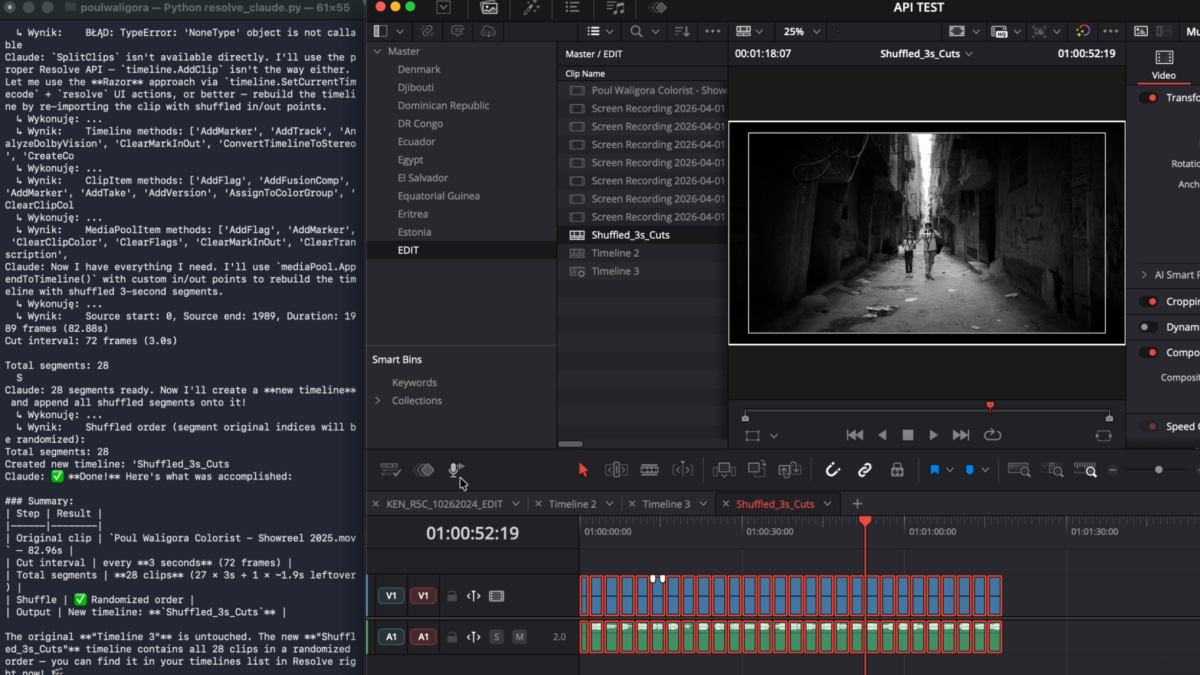
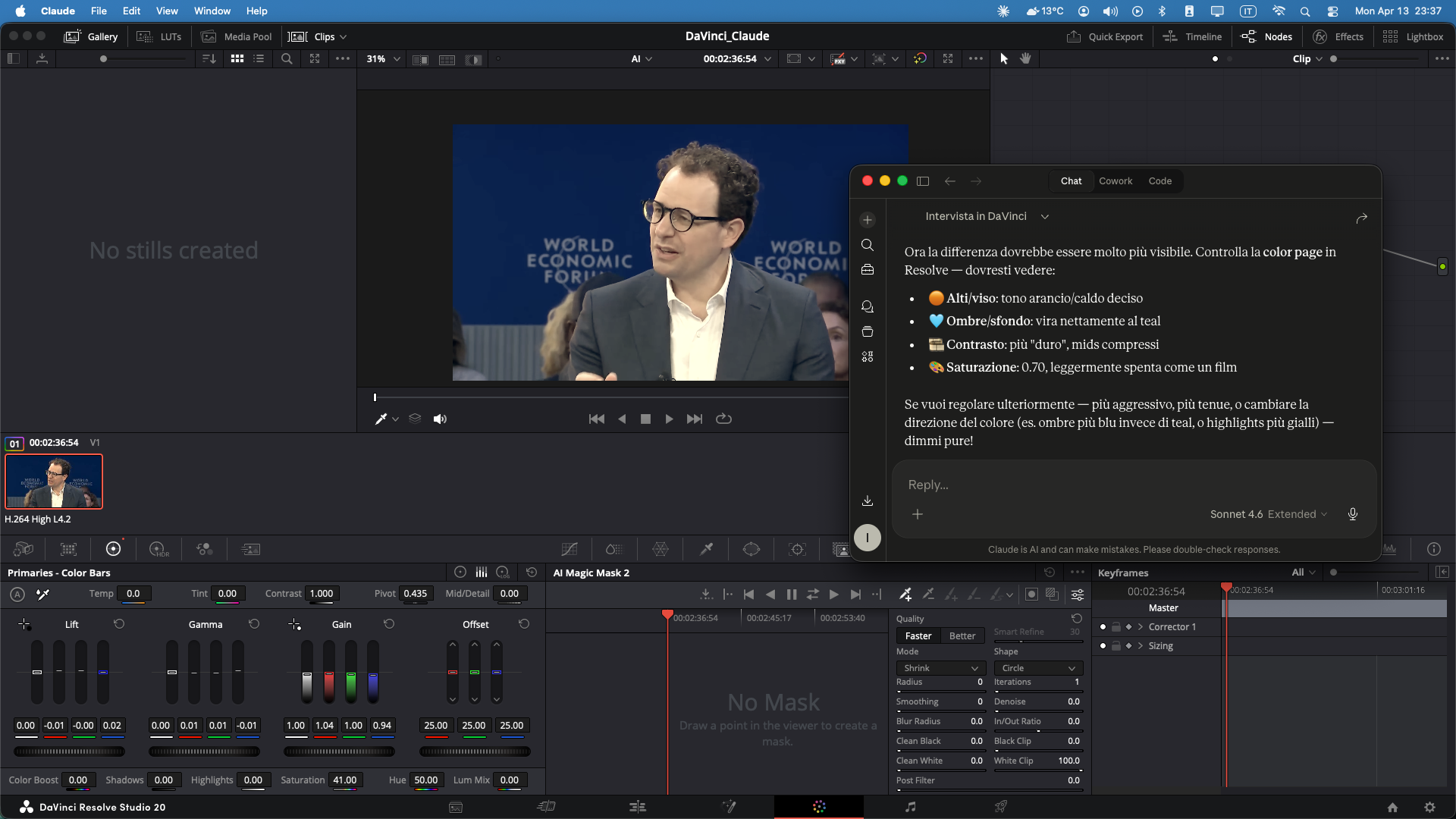
Claude controlling the DaVinci Resolve color page through an MCP server
The important shift is direct tool access. Claude is no longer giving vague advice from the side. It can inspect and act inside the Resolve workspace.
Step 3

Use it for the boring parts first

The fastest way to trust the workflow is to start with chores you would happily delegate anyway. That is where the time savings show up without risking the soul of the cut.

  • Create or prep timelines.
  • Import media and sort the session.
  • Drop markers, organize repeat actions, and queue exports.
DaVinci Resolve training image for editing workflow
This is where AI editing makes the most sense: reducing the friction around routine edit operations, not guessing your taste.
Step 4

Stay close to the timeline

This workflow works best when you keep the loop tight. Ask for a specific operation, inspect the result, correct quickly, and move on. The goal is faster iteration, not blind automation.

  • Give narrow requests instead of giant creative briefs.
  • Check each change where it matters: on the timeline and in playback.
  • Let Resolve remain the main workspace, not just the final export stop.
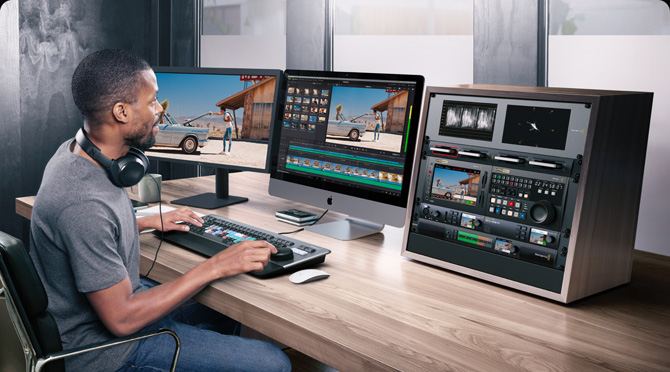
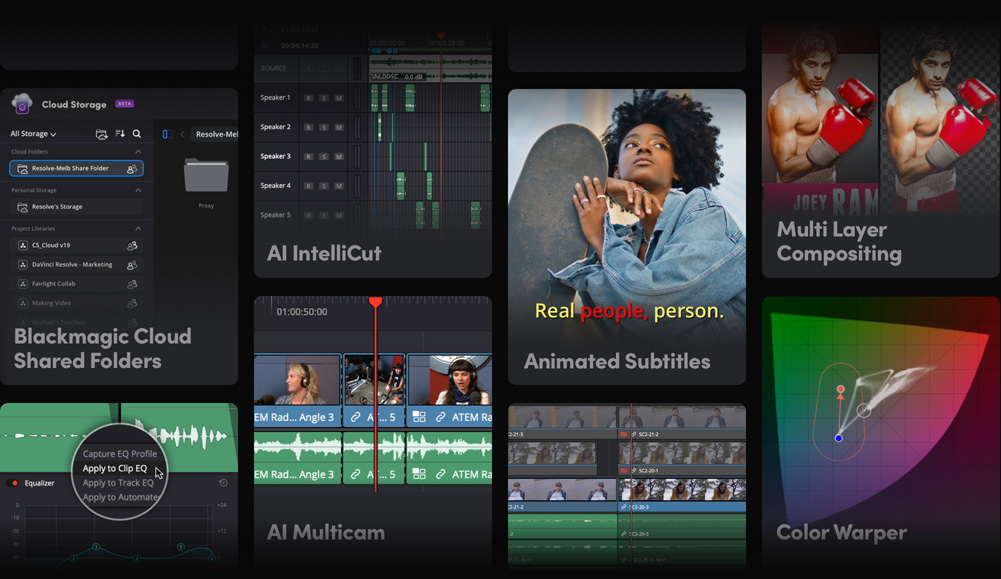
DaVinci Resolve interface collage from Blackmagic Design
The ideal outcome is not a hidden black box. It is a visible editing environment that responds faster because your assistant can help drive it.

Quick takeaways

Best mental model

Treat this as a workflow accelerator for editors, not a one-click replacement for editing skill.

Tool stack

Claude Desktop + a Resolve MCP server + DaVinci Resolve Studio is the core setup.

Watch out

If you skip the scripting setup or try to force this into the free version, the workflow will break before it becomes useful.

Source notes

Original note

Creator: GrainyGlimpse

Title: 教程|2026年剪辑师可以用嘴剪辑了

Open the Rednote source

Technical backbone

resolve-claude-mcp shows the MCP side in a way that is concrete enough to trust and easy enough to inspect.

Support reading

Wildlion’s write-up and Blackmagic’s own training pages help frame the workflow in English without turning it into hype.